EARN 120% BITCOIN IN JUST 60 DAYS

How to Hack Symbian S60 Phones to Install Unsigned Applications

Hack Symbian S60 PhonesIf you own a Nokia Symbian S60 phone, you will most likely be aware of the fact that it is not possible to install applications on it unless they are signed using a valid certificate. Have you been trying to install applications on your S60 3rd or 5th edition phone but ending up getting a certificate error? At times, this can be really annoying; but here is a smart solution to this problem!
Here in this post, I will show you how to hack your Symbian S60 3rd or 5th edition smartphone, so as to modify the phone’s firmware and completely bypass the mandatory signing requirement. So, once you are done with this one time hack, you should be able to install any compatible application including unsigned and those with an expired certificate.

What is the Need for Signing Applications?

From the 3rd edition onwards, all the Symbian S60 applications need to be signed in order to ensure their integrity, so that it would not be possible for a third party to tamper with the application. Also, signing ensures that you always install applications from a trusted source.
However, there are many freeware and beta applications that come unsigned as the developers cannot afford to buy a symbian certificate. Hence, it can be a real nightmare for the users who need to install such applications on their phones. So, here is a step-by-step procedure to hack your phone and permanently disable this security feature:
  1. Download the latest version from the HelloOX2 Ofiicial Website.
    HelloOX2 is an excellent tool to hack Symbian S60 3rd, 5th and Symbian^3 smartphones which makes it possible to install a root certificate by gaining full access to the phone’s system files. With this capability, you can install anything you want on your phones without the need to worry about the annoying certificate error!
  2. The signed version of HelloOX2 demands for a donation and hence, only the unsigned version is available for free download. So, if you have the unsigned version, you need to sign it before installing on your phone. In order to sign any application, you need to have the certificate and the key file which can be obtained as follows:
    • Go to the OPDA Website, get registered and login to your account.
    • Click on the “Apply Certificate” tab, enter the model number and the IMEI of your phone and then click on “Submit and Upload” button.
    • It will usually take up 24 hours for your certificate and key file to be generated and uploaded. To check the status of your certificate click on “My Certificate” tab. If the certificate is ready for the download, you will see something as follows:
    OPDA Certificate Status
    • Download the certificate and the key file on to your computer. Also download the SisSigner tool to sign your HelloOX2 application.
    • Open the SisSigner, load the HelloOX2.sis, certificate and the key file as shown below and click on “Sign”. Leave the “Key File Password” field blank.
    Hack S60 Phones
    • Your HelloOX2 application is now signed and ready for the installation.
  3. Install the signed HelloOX2 application on your phone and run it to start the hacking process, which is completely automatic. Within a minute your phone will be hacked. Once this is done, say goodbye to the annoying certificate error and install any application.
I hope you like this post. Express your opinion through comments. Enjoy!!!

How to install Windows Server 8 Beta VM on VirtualBox

These directions are for setting up a Windows Server 8 VM guest on a Windows 7 Ultimate Host using VirtualBox. These instructions may work on other platforms.
1. If you haven’t already, download and install Oracle VirtualBox.
2. Download the Windows Server 8 Beta Virtual Machine from Microsoft.  Note that you may be required to register.  This is how my download looks:
windows-server-8-download
3. Run this file to create the Virtual Hard Disk (VHD) containing Windows Server 8.  Take note of the VHD’s location on your hard drive.  You will need this later.
windows-server-8-vhd
4. Open VirtualBox.  Click “New” virtualbox-new-vm to create a new virtual machine.
5. Enter a name for the VM.  Select “Microsoft Windows” for the operating system and “Windows 8 (64 bit)” for the version. Click Next.
virtualbox-create-windows-8-server-vm
6. Select the amount of memory to allocate to the Windows 8 Server VM.  How much ram should you use for the Windows Server 8 VM? I’m starting out with 2GB.  If I find that I need more ram, I’ll report back here. Click Next.
virtualbox-windows-server-8-vm-memory
7. On the virtual hard disk (VHD) screen, select “Use existing hard disk”. Click the folder icon virtualbox-open to locate and select the VHD you created in step 3. Click Next.
virtualbox-windows-server-8-vm-vhd
8. Click “Create” to create the new virtual machine.
virtualbox-windows-server-8-vm-create
9. Right click on your new VM and click “Settings…”.
virtualbox-windows-server-8-edit-vm
10. Click “System” in the menu on the left. See the settings I used below.  These settings may or may not be required for your set up.
virtualbox-windows-server-8-vm-settings1
virtualbox-windows-server-8-vm-settings2
Note that you may have to enable VT-x or AMD-V support in your computer’s BIOS.
virtualbox-windows-server-8-vm-settings3
11. Click “Storage” in the menu on the left. Below is what I saw by default.
virtualbox-windows-server-8-vm-storage
Please note that the first time I attempt to start the Windows Server 8 Beta VM, VirtualBox kept experiencing crashes.  I got the error, “Oracle VM Virtualbox Manager has stopped working“. To get around this error, I deleted the virtual disk above from the SATA Controller pictured above and added the VHD to the IDE Controller. Below are the steps I performed:

  1. Right click on the VHD under the SATA controller and select “Remove Attachment”.
  2. Right click on the IDE Controller and select “Add Hard Disk”.
  3. Click “Choose Existing Disk”.
  4. Locate and select the VHD you created in step 3.
  5. Click “OK” to save your settings.
12. Right click on your new VM and click “Start”.

After a few step up steps, you should now have Windows 8 Server VM installed and running in VirtualBox!
virtualbox-windows-server-8-vm-ready
I think that Windows Server 8 virtualization will be very popular.  I’m looking forward to setting up some Windows 8 server VMs at work.
I hope you found this VirtualBox Windows 8 Server tutorial helpful.  If you have questions about these instructions, please post them in the comments section.

Install Paid Android Applications For Free

Free-Android-Paid-Applications
Android, developed by Google is the most widely used mobile operating system that has more then 450,000 application. But all the applications are not free, some of them cost less and some cost quite a lot. Buying all of your favorite apps is not economically feasible. And hence we found two great apps which will let you download and install paid android apps absolutely free. The two apps are Applanet and BlackMart. You just need to install any or both of these applications to enjoy unlimited android apps and games for free.


Enable Your Device To Install From Unknown Sources :


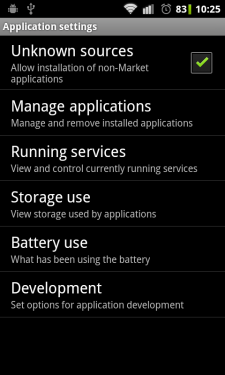
enable-installation-from-unknown-sources-AndroidIf you have not enabled installation of applications from unknown sources on your Android device before, then read on. Otherwise skip this. 
An Android device is set to block installation of applications from unknown sources. Unknown source here typically means any source other than Google Play (Android Market). So in a situation where you need to install an application by transferring it from any other device like your computer, you need to unblock it. This can be done easily. Just follow these steps below.
  1. Click the "Menu" button on your home screen.
  2. Go to "Settings".
  3. Now go to "applications" tab.
  4. Now tick the "Unknown sources" option.
That's it. Now you can install any application from outside the Google Market also.

Installing and Using Applanet :


Applanet-Download-Paid-Android-Applications-For-FreeInstalling applanet is not at all hard. Just download the Applanet app. Transfer it to you phone or tablet or any other Android device through data cable or Bluetooth or any other supported transfer medium. Now enable installation from unknown sources and install the app on your device.

After installation just run the app from the menu. You will see a screen as shown on the right side. The interface is quite similar to the Google Play Store or the Android Market. On the top right you will have a search option, that allows you to search for any application, game or any stuff within the Applanet database. Till date Applanet has 15000+ apps in its database. You have to pay absolutely nothing for any full version paid app you download. Below the search button you will have three buttons, one for Applications which allows you to browse applications, second one for Games and the third for keeping an eye on your downloads. The games are also categorized on the basis of their genre and you can browse through them according to your own interest. So download Applanet app from here and download paid apps for free on your Android device. Click on the image to see a larger version of the screenshot.


Installing And Using BlackMart :


BlackMart-Download-Paid-Android-Applications-For-Free
The installation of BlackMart is exactly similar to Applanet. You have to first download the app from here. Now allow installation from unknown sources, then transfer the downloaded file to you Android device. After transferring the file, navigate to the file and install it. Now open the BlackMart application. You will see a screen as shown on the right side. The application interface is also similar to that of Google Play and Applanet. Applications and Games are arranged in different sections. The installed section shows the applications currently installed on your device and also if an update is available for any of your installed application. The only difference between the Applanet and BlackMart is when you download an application with Applanet, it automatically installs in your device, but when you download an application with BlackMart, it shows a notification in the notification tray that the application is downloaded and click here to install it. It requires just one additional click and nothing else. BlackMart also has a very vast database of best android apps and games and you can download any number of android apps for free using BlackMart.
 

© 2012 H@Ck tHe wOrLd - Designed by rAj | ToS | Privacy Policy | Sitemap

Join me On Facebook | Contact Us | Write For Us